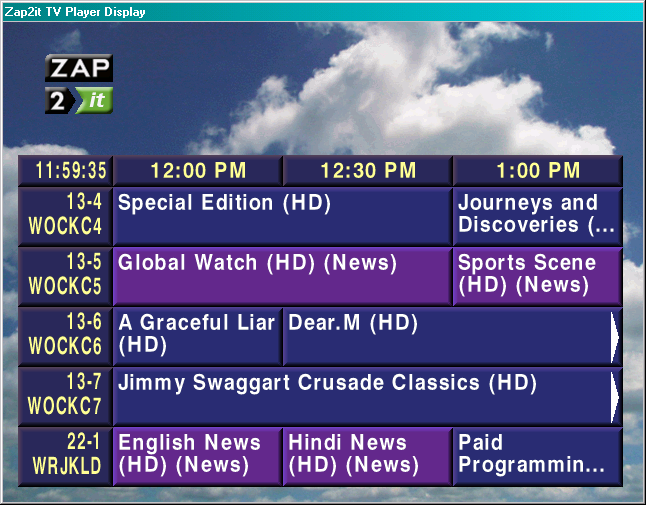
Here is a quick and dirty Zap2it/OnCable installation guide for the software package I tossed onto the Internet Archive on October 1, 2025.
This software package was sourced from a computer previously serviced to run it. It was configured to be run on Windows XP, though you can run it on older and current versions, even in Wine.
This page was last updated on March 25, 2026. If you have any information you would like to contribute to these pages, please contact me.
Here's the amount of information I've been able to figure out for this (otherwise scarce) program:
The OnCable/Zap2it TV Player software was developed by Interactive Systems Inc. (abbreviated to ISI), a private multimedia software company based out of Ontario, Canada. When it originally released (presumably mid-1990s), it was marketed as OnCable.
In comparison to similarly operational software such as Prevue Guide, it ran on Windows (Prevue was Amiga-powered, though some later iterations of it would eventually run on Windows,) offered lots of customization options out-of-the-box, and more interestingly utilized a handwritten children's font for designation of childen's programming.
Sometime in 2000, Tribune Media Services would acquire ISI and its products, rebranding their services under Zap2it (the company, ISI, would refer to itself as TMS Canada Corp.), an online TV listings and content provider they launched earlier that year.
Future releases of the software would be available under the Zap2it brand up until the mid-2010s, when it would be marketed under Tribune Media Services itself. It seems it briefly carried over after Gracenote acquired their TV listings services, though how long they kept it around (or if it's even still being maintained) is not known.
Most providers that previously used Zap2it, such as Frankfort Plant Board and Optimum, would later switch over to more modern-day solutions, with most seemingly switching over to Display Systems International's LineUp package.
As for Zap2it (the brand), the main website for it went offline in May 2025, later being made available for a time on the Gracenote (company that merged with TMS in 2014) domain, before returning a 404 not too long later. Having said all of that, they are still maintaining it for a few select cable providers across the country, so take all that as what you will.
The package was originally configured to run from the root of the D drive/partition. Here, I modified it to be run from a directory on the main drive.
To install the application, simply extract the archive to C:\ZAP2IT\. Verify that the extracted folder includes an Isi and an OnCable directory.
Additionally, miceroni created a pre-made VMDK for use in VMware Workstation that you can find here.
The main executable is located at C:\ZAP2IT\Isi\Programs\Player.exe.
It runs best on actual hardware or something like 86Box, as virtualization programs don't seem to render the dissolve transitions and smooth scrolling perfectly. You must also have DirectX installed. (not necessarily a problem for Wine)
In order for the program to run, you must run it from the directory of the current configuration, located at C:\ZAP2IT\Isi\Configs\ZAP2IT\.
C:\ZAP2IT\Isi\Programs\Player.exe.C:\ZAP2IT\Isi\Batch\playerstartup.cmd that does all of this for you.wine start /d 'C:/ZAP2IT/Isi/Configs/ZAP2IT/' 'C:/ZAP2IT/Isi/Programs/Player.exe'The program also checks for a key before it can be run. Fortunately, you can set one yourself by running SetKey.exe located in the same directory as Player. You can also skip this all together by adding the option -nadgob to Player. (apply it to the end of the command)
Here's a little bit of what I have been able to figure out in regards to how the program works and whatnot. This section is useful if you want to tinker around with things.
For one, the configuration is located in C:/ZAP2IT/Isi/Configs/. For this dump, it is listed as ZAP2IT.
Q will quit the program.S will stop everything and pull up the Control Panel (if full-screen).The default, provided configuration will run the program in full-screen at 640x480 with 16-bit color depth. To change these settings, edit the player.ini file located in the configuration folder:
WindowMode: 0 for Window Mode, 1 for full-screen output.PixelBits: By default, this is set to 16. For 32-bit color depth, set it to 32.The configuration has a lot of other interesting settings on their own. I'll discuss these at a later time, however you're free to experiment on your own.
By default, some listings are provided from October 1, 2025. These were generated using a Python script to convert XMLTV-format listings to the delimited format used by the OnCable software. In production, it seems the listings were handled through an external program known as Slave. (included in the same folder as Player). I have not looked into how that program works at the moment.
Here are some pointers if you'd like to add your own listings:
C:\ZAP2IT\OnCable\EXPORT\ZAP2IT\ directory. Listing files always start with the current date formatted as MMDDYYYY and use the .del file extension (short for delimited?)The schedule provided is almost exactly as it was in the initial dump, just renamed to prevent any confusion. (from memory it used a strange filename and extension.) The default script provided in the dump is not exactly stock, instead reconstructed to make it look as stock as possible.
ISI seems to have offered a utility for customizing the guide to your liking, however a copy has not surfaced (and was not part of the provided dump), so unfortunately this is the next best thing.
Although I haven't looked too much into how the schedules work, I have in regards to the scripts themeselves. See the Schema page for additional information and examples.
Further viewing